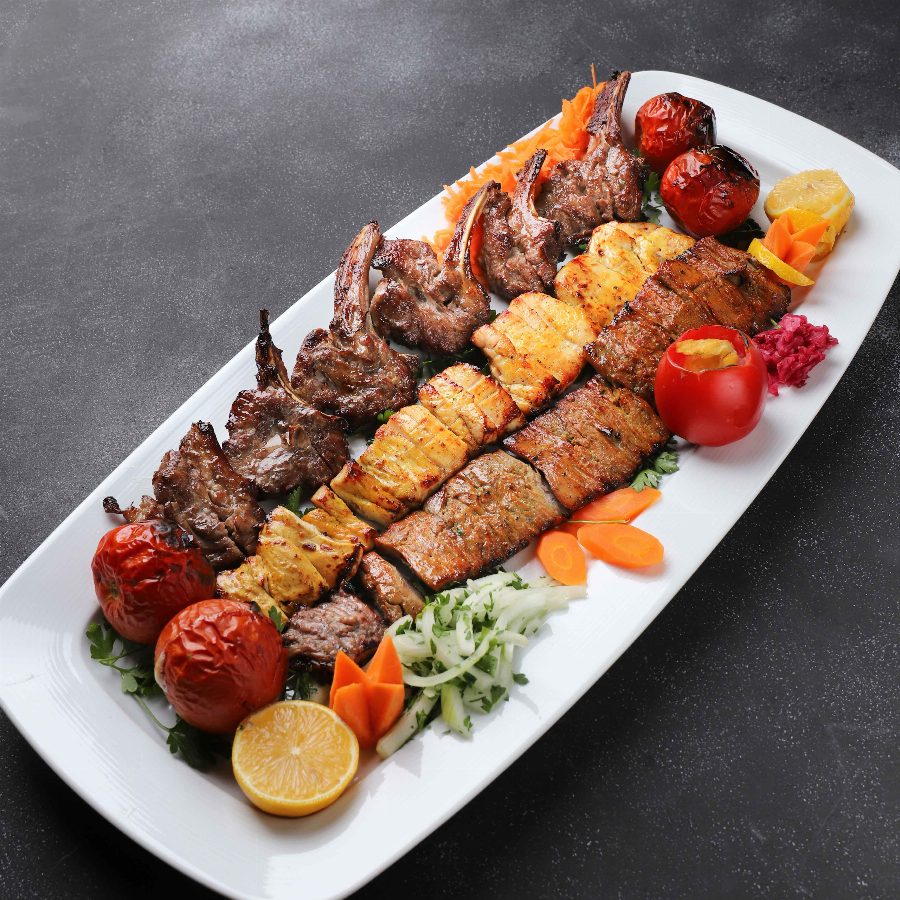
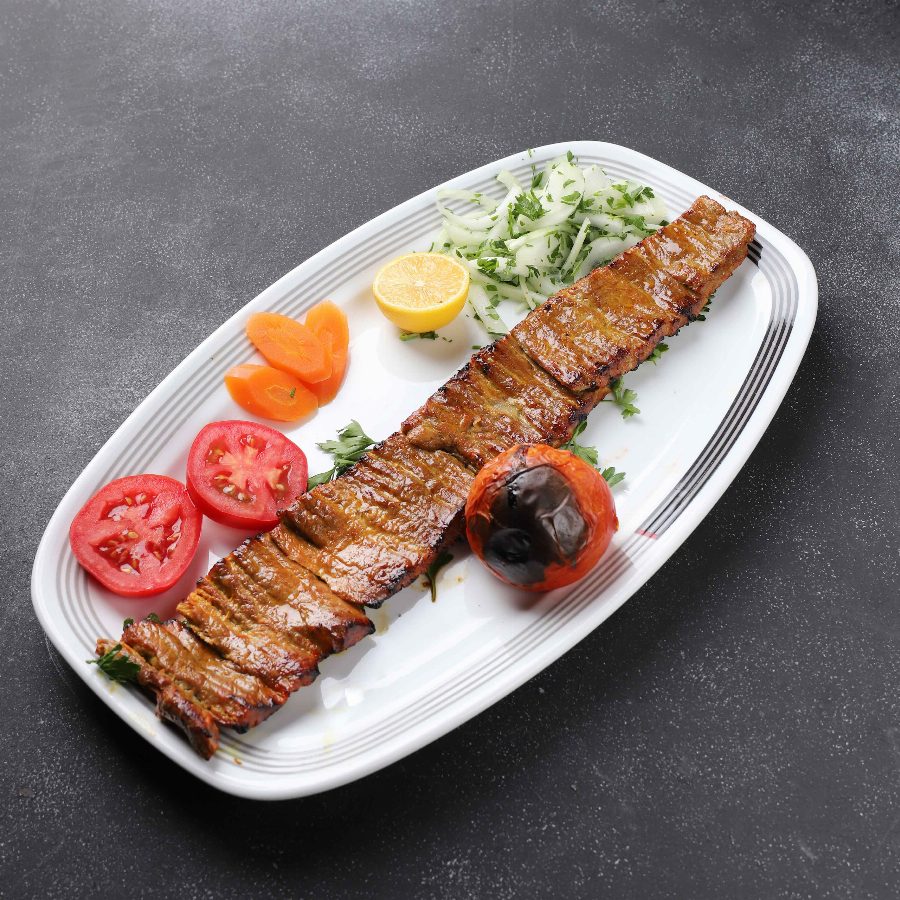
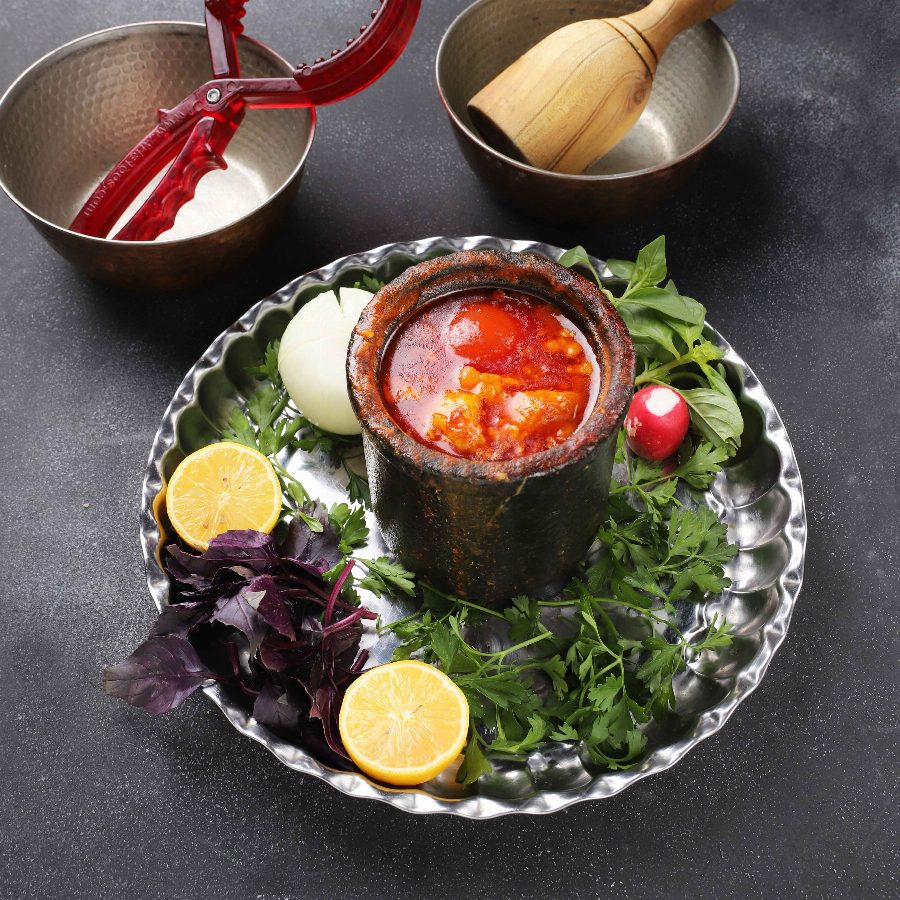
Your menu in photographs
Every dish with the photo and price you set in the workspace.
Desktop app
Install the till on the counter computer: your menu with photos and prices, orders that reach the kitchen at once, and a drawer closed with a cash count at the end of the shift.
SHA-256e8ed287bfec12f06fa51a098543504fef5bf5e45605f0b2af92e255c9d540e47
The app's own screens are in English for now.
Right-click the ZIP file and choose “Extract All”: you get a folder with nabusto-pos.exe in it.
The app is not code-signed yet, so Windows SmartScreen may ask first: choose “More info”, then “Run anyway”.
Type the server address below, then a staff member's email and password. The till remembers the address and the email, never the password.
Server addresshttps://nabusto.com
Every dish with the photo and price you set in the workspace.
An order reaches the kitchen screen at once, and its ticket stays open until it is paid.
Open the shift with the cash in the drawer and close it with the count.
The server works out prices, tax, stock and totals, so a retry after a dropped connection is never a second charge.
Any computer or tablet with Chrome or Edge can be the till: sign in with a staff account.